Contents
For an idea, what matters most is not finishing it. It is not losing it.
Halfway through a task, something else pops into your head: a message to answer, something to buy, a new plan. Act on it now and you lose your place. Ignore it and it keeps circling in your mind.
Ideas gives those thoughts somewhere to land. Write it down in a few seconds, let it go, and return to the step in front of you. An idea is not a to-do. Park it here and decide later whether to act on it.
Five ways to capture
The faster you capture, the less it interrupts you. Pick whatever fits the moment:
| Entry | How | Best for |
|---|---|---|
| Shake | Shake your iPhone firmly on any screen in PlanCoach | Mid-task, for example in Navigation Mode |
| Home Screen | Long-press the PlanCoach icon and choose Capture Idea | When PlanCoach is not open |
| Siri | Say “Capture idea in PlanCoach”, then confirm the text before it is saved | Hands busy |
| Shortcuts | Assign the Capture Idea action to the Action button, Back Tap or Apple Watch | One-press capture |
| Inside Ideas | Profile → Ideas → + in the top-right corner | Sitting down to sort things out |
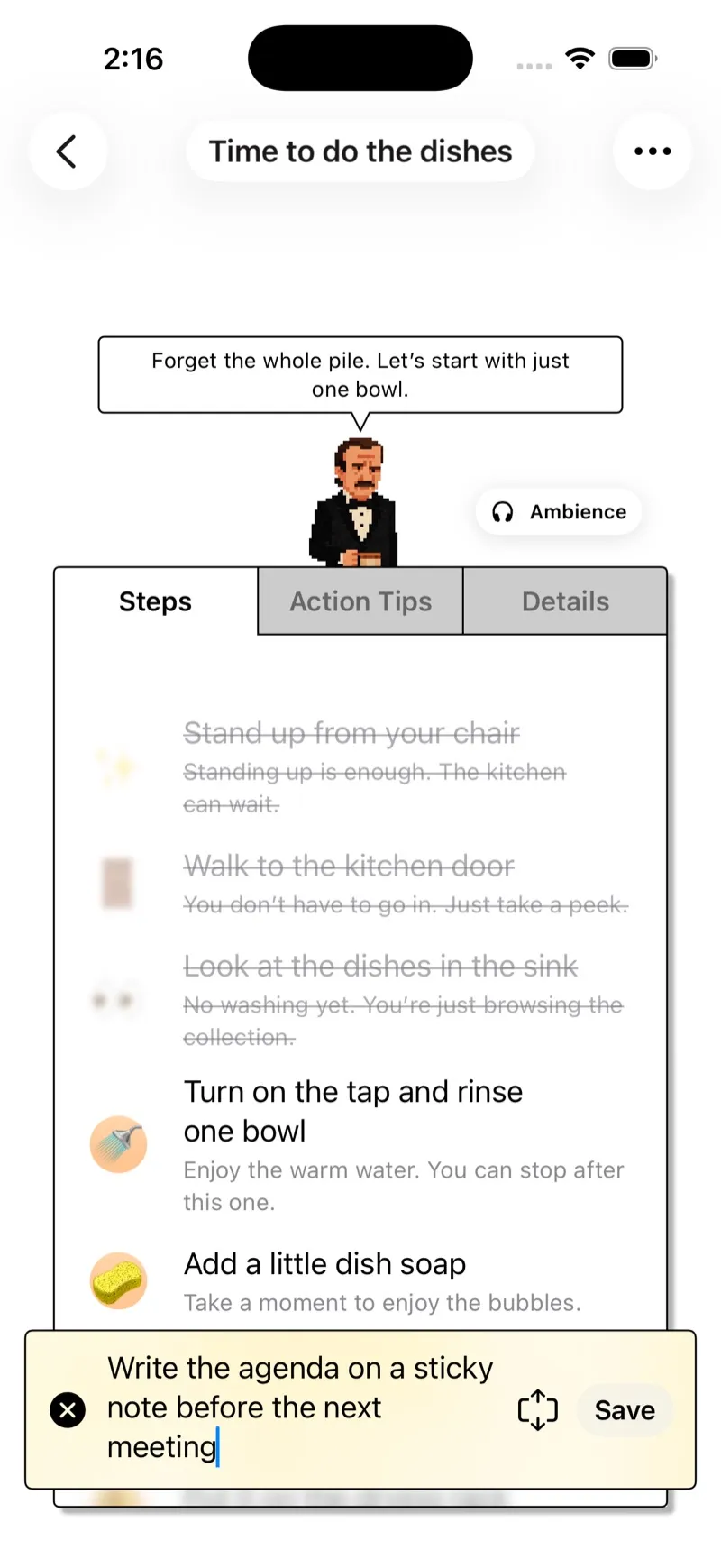
The expand button next to Save opens the full editor, where you can add flags and a due date.
See Shortcuts to set up the Shortcuts actions. To turn off shake capture, go to Settings → Interaction and switch off Shake Hard to Capture Inspiration.
Organize your ideas
Ideas are listed on a timeline, newest first. Pinned ideas stay at the top.
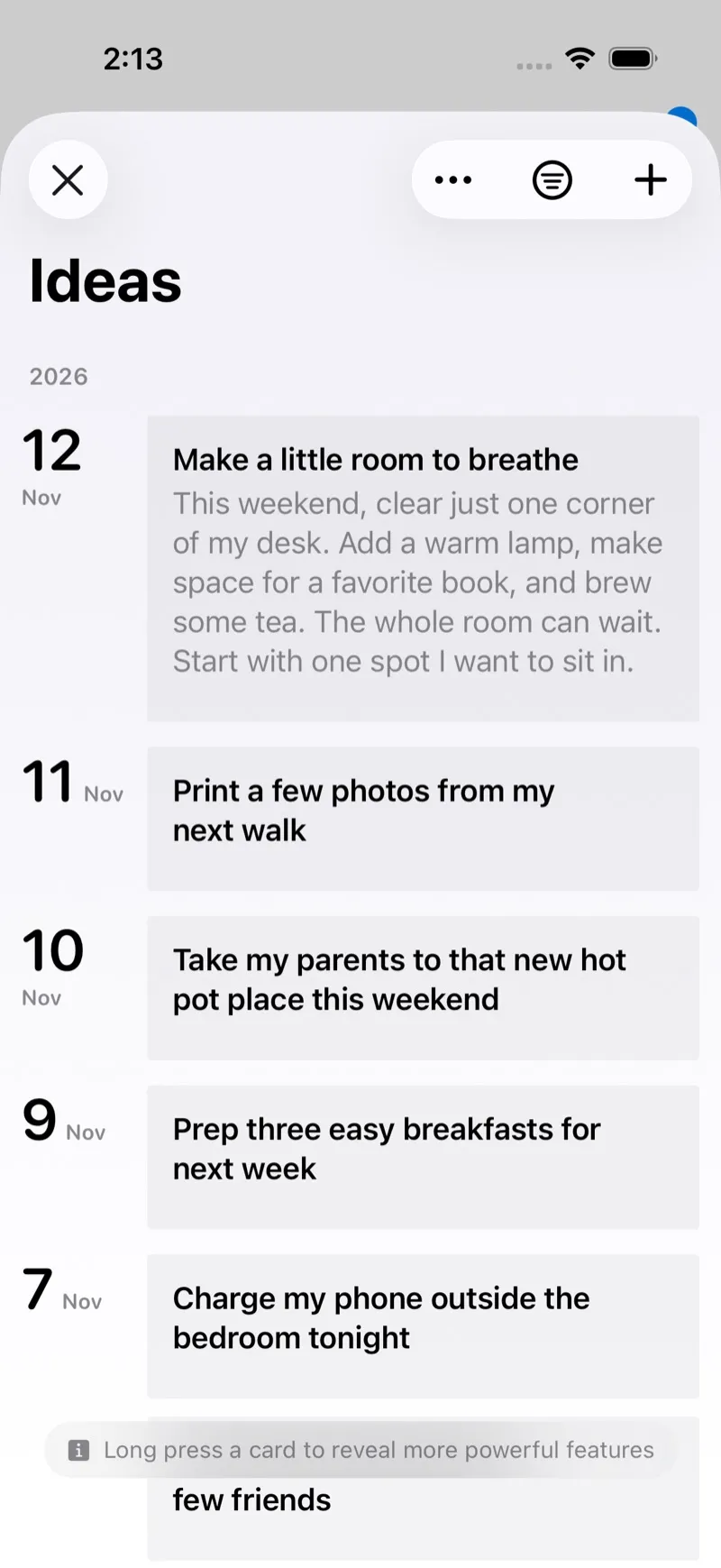
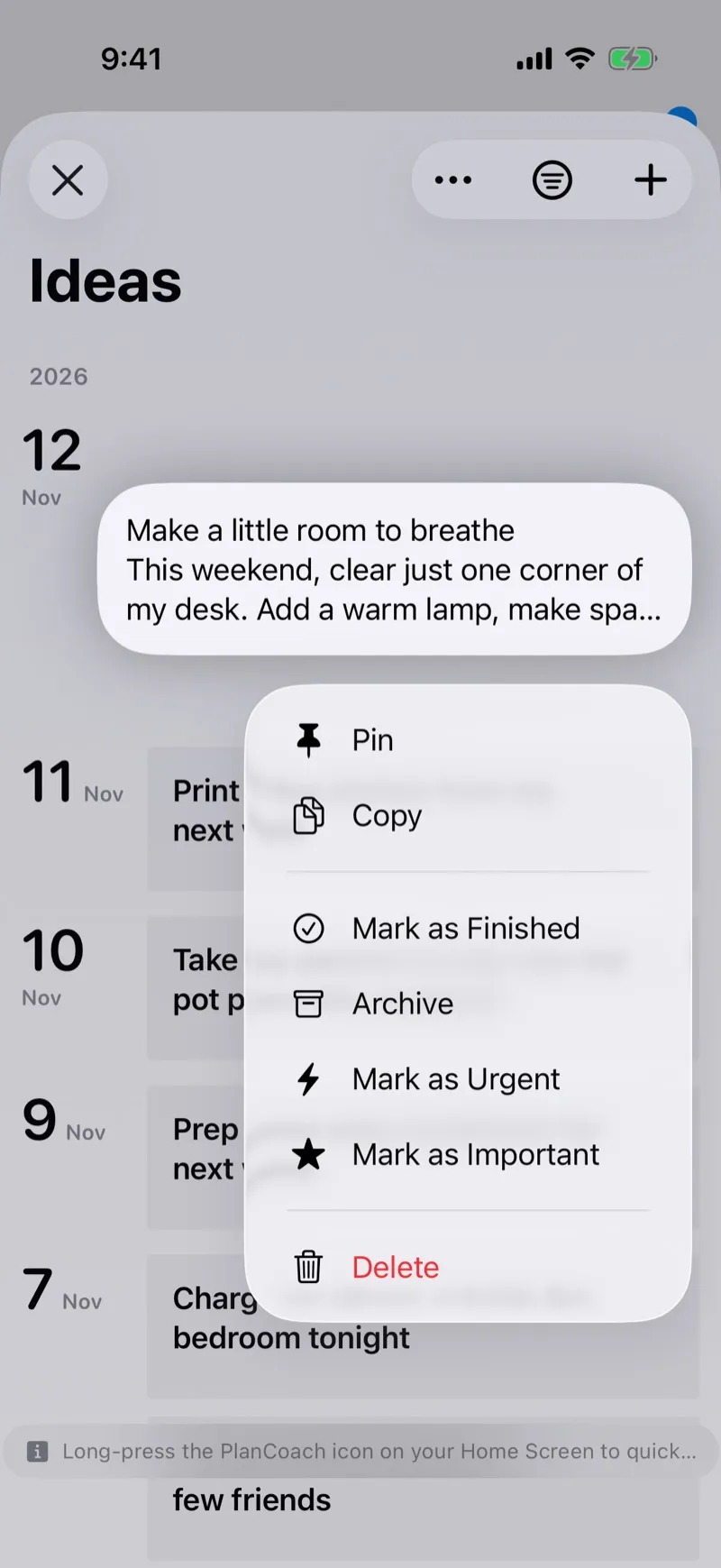
Long-press a card to:
- Pin an idea you keep coming back to.
- Copy it to paste into another app.
- Mark as Finished or Archive it to move it out of sight.
- Mark as Urgent or Mark as Important to sort ideas by priority (see the next section).
- Delete it. This cannot be undone.
When the list grows:
- Use the search field at the top to find an idea.
- Use the View options button in the top-right corner to group by status, filter by Open, Finished or Archived, or show only urgent or only important ideas.
Sort by urgency and importance
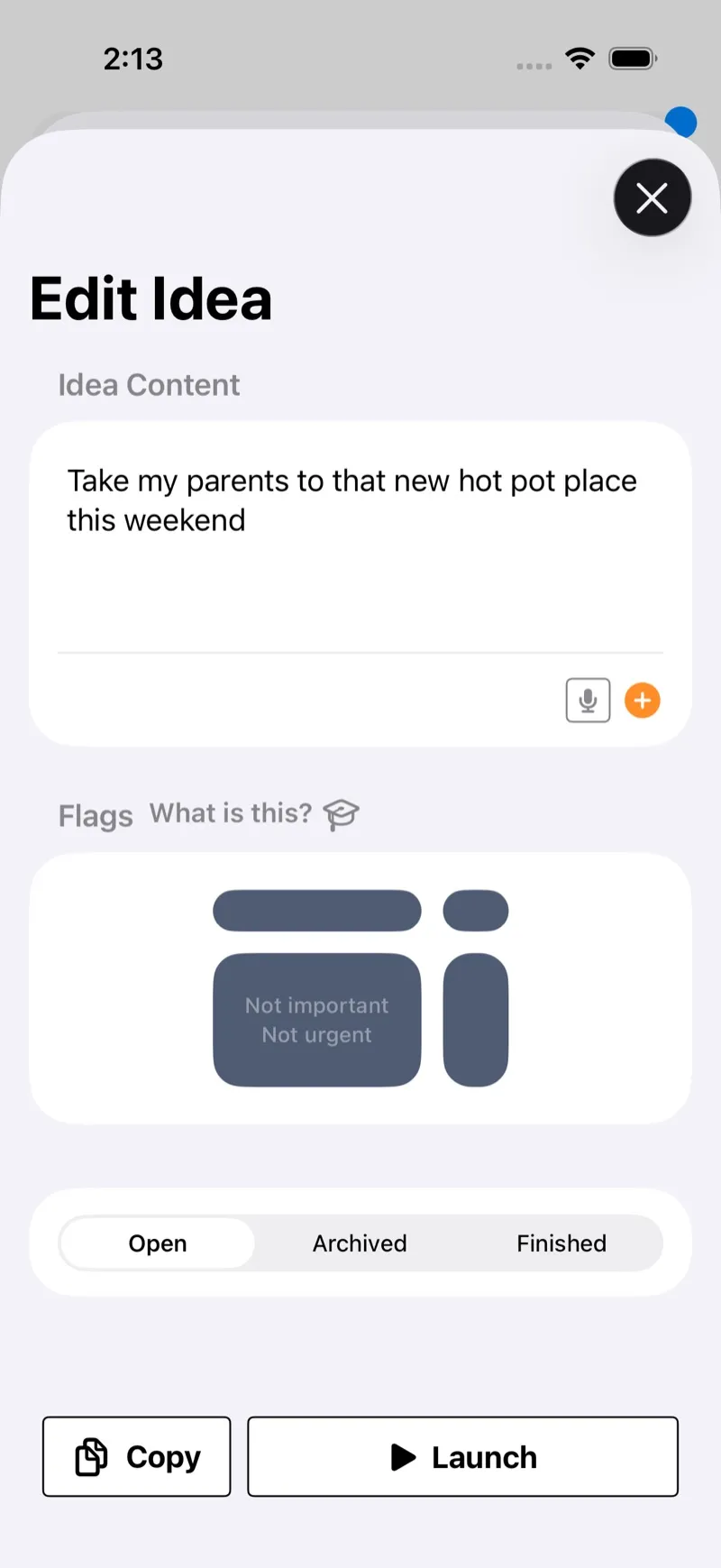
Tap an idea to open the editor. Under Flags, tap or swipe the four-quadrant control to mark the idea urgent, important, or both. Tap What is this? for a short explanation of the four quadrants.
In the editor you can also:
- Tap the microphone in the content box to dictate.
- Tap the orange
+next to it to add a Due Date, then turn on Remind me 5 minutes before. - Switch the status between Open, Archived and Finished.
Turn an idea into a plan
When you decide to act on an idea, tap Launch at the bottom of the editor. The idea goes straight to your coach and becomes a step-by-step plan.
When you finish that plan, PlanCoach asks whether to mark the original idea as finished too, so completed ideas do not linger in your list.
Export
To move ideas into a notes app or send them to someone:
- Tap
···in the top-right corner of Ideas and choose Select ideas. - Check the ideas you want, then tap the export button in the top-right corner.
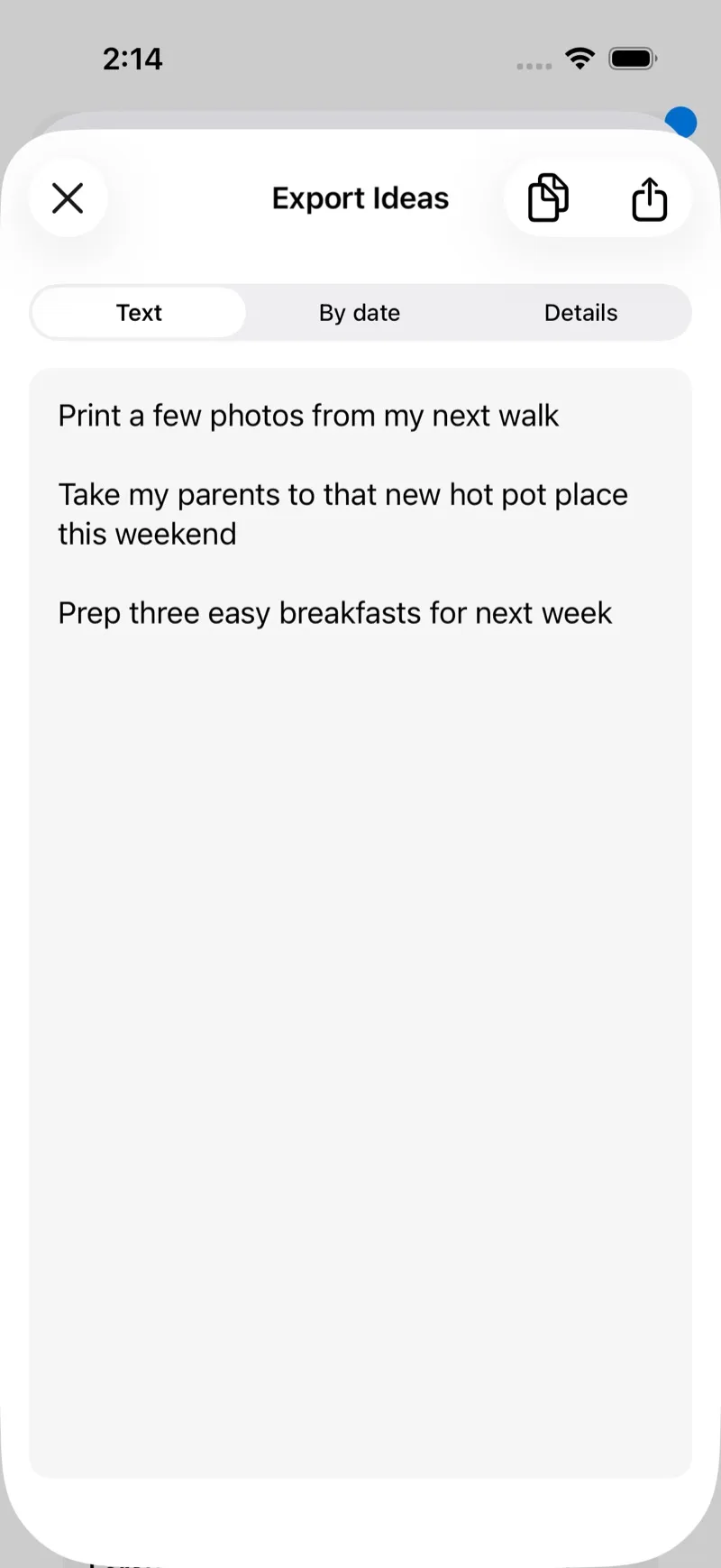
- Pick a format: Text, By date, or Details (with status, flags, due date and more).
- Copy or share the result.
Rediscover ideas on your Home Screen
Ideas you capture should not just sit in a list. Add the Earth Online widget to your Home Screen and tap Idea Fragment to draw a random one. Old ideas often look different the second time around. See Widgets for setup.