Contents
Why do we drift away after getting started?
You sit down to work, then pick up the phone to check one word or answer a message. A video follows, then another. Half an hour later: “What was I doing?”
The original goal has to compete with new information in working memory. For people with ADHD, or simply a lot on their minds, keeping the task visible can reduce the burden of remembering it.
Keep the next action outside your head
Two useful ideas from GTD are to stop relying on memory and to make the next action concrete. A long to-do list can still be overwhelming, and it disappears when you switch to another app.
PlanCoach combines two approaches:
- While working, keep the current step visible in large text.
- When you have been away for too long, send a nudge that brings you back.
1. Get reminders while a plan is in progress
Open Settings → Notifications → In-Progress Reminders. You can turn the reminder types on or off separately.
Off-track reminders
When a plan is in progress and you stay away from PlanCoach for too long, periodic notifications remind you that a task is still running. If you are genuinely working in another app, long-press the notification to postpone it.
The point is to interrupt an unintended scrolling session before the original task vanishes from attention.
Progress reminders
Notifications at 50%, 90% and 100% of the current step’s estimated time help make elapsed time noticeable.
Postpone a reminder when you need to
- Long-press the notification to choose another reminder in 2 minutes or 10 minutes, or stop reminders for this round.
- Return to PlanCoach to continue the task; previous reminder notifications are cleared automatically.
2. Keep the next step visible
Navigation Mode
Tap the navigation icon at the bottom of a plan, or place the phone in landscape orientation, to enter Navigation Mode.
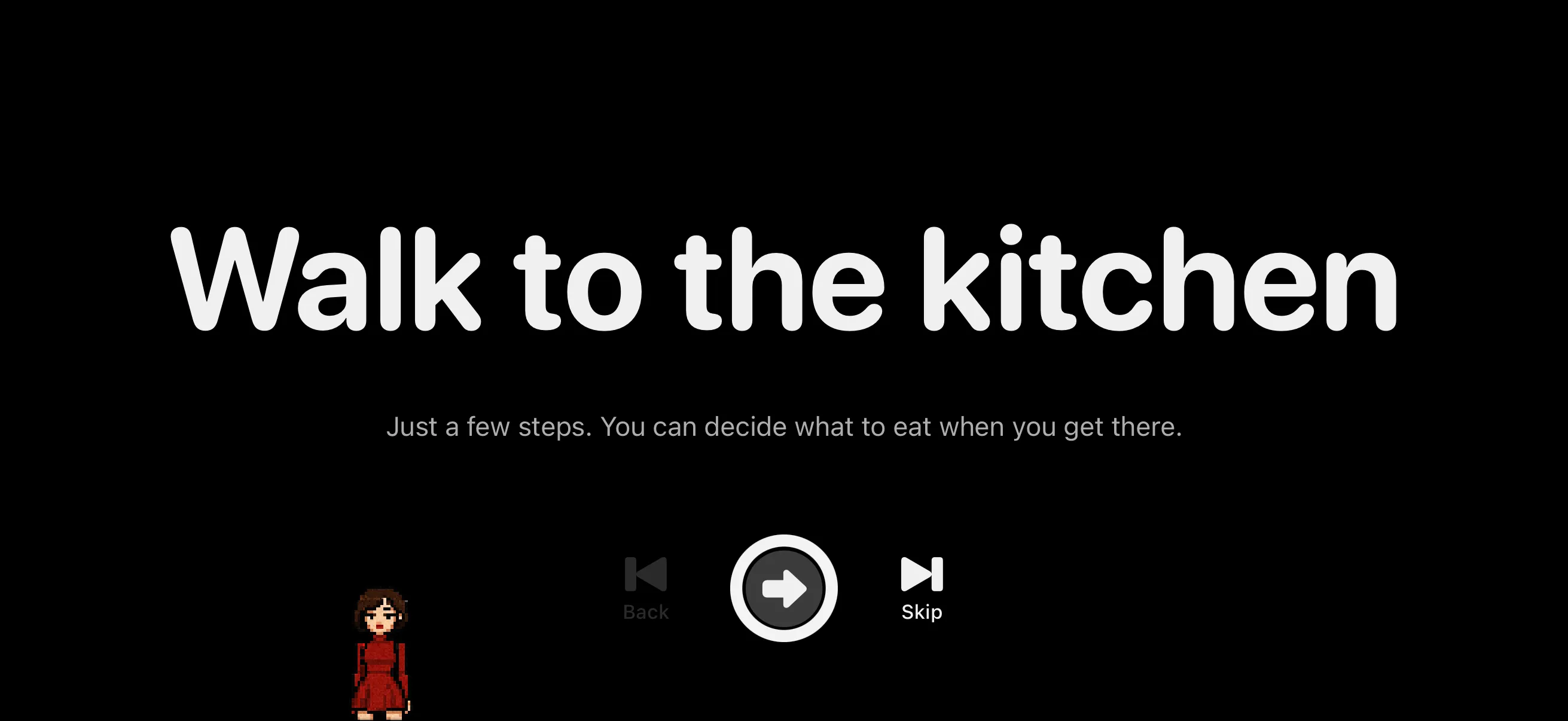
Other steps are tucked away so you can keep the current action—such as walking to the kitchen—in view. Prop the phone beside your work and glance at it when you need a reminder.
Dynamic Island and Lock Screen Live Activities
The current step and progress remain visible after locking the phone or returning home. Tap the right arrow on the Lock Screen activity to complete the current step and continue without unlocking into the app.
Add widgets and StandBy
For a Home Screen or charging-stand setup, read External Brain on Screen. It combines widgets, reminders, the Dynamic Island and Navigation Mode so your goal stays in sight as you move between apps.