Contents
Why does a task fall apart after you have already started?
Sometimes the interruption is the moment you pick up your phone to check the next step. A message or a video catches your eye, and the momentum you worked so hard to build disappears.
At other times, handling a phone is simply awkward: your hands are wet in the kitchen, you are getting ready for bed, or you are moving between rooms while cleaning. With PlanCoach on Apple Watch, you can leave the phone on the table and take the coach with you.
What can PlanCoach do on your wrist?
1. Follow the current step and mark it complete
Start a plan on your iPhone or Apple Watch. The watch keeps the current step’s title visible, with the coach’s guidance below it.
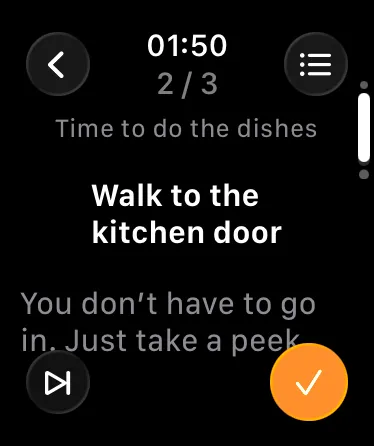
- Turn the Digital Crown to scroll through longer guidance, browse other steps or revisit the opening message.
- Tap the orange checkmark to finish the step and move on. Progress syncs back to your phone.
- On supported models—Apple Watch Series 9 / Ultra 2 or later, with watchOS 11 or later—use Double Tap to complete the step without touching the screen.
2. Start a saved route
Your saved routes and past tasks sync from the phone to the watch.
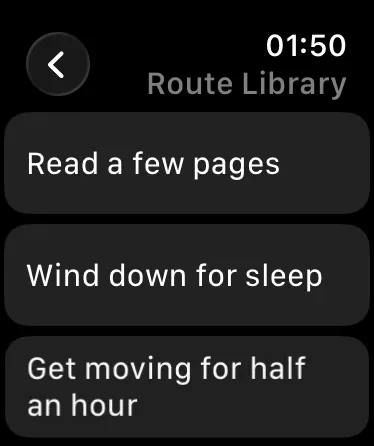
Tap a route, such as your bedtime routine or leg-training plan, to go straight to the first step without a confirmation dialog.
3. Create a task by speaking
Tap + in the upper-left corner to start a task on the watch.
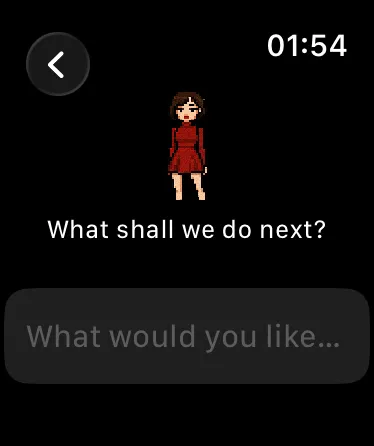
- Turn the Digital Crown to choose a coach: Coach W for getting started, or a specialist that suits the task.
- Tap the voice-input prompt and describe what you want to do using system dictation. Your paired iPhone generates the plan in the background and sends the steps to the watch.
4. Get a nudge when a step runs over
When the estimated time for a step has elapsed, a gentle vibration brings your attention back. If you need longer, choose another reminder in 2 minutes or 10 minutes.
Five situations to try
Bedtime and morning routines
Leave the phone charging in the living room. Start your bedtime route on the watch and follow the steps through brushing your teeth, washing your face and getting into bed, without opening your phone.
Cooking, baking and washing up
Check the next ingredient or cleaning step at a glance. Use Double Tap on a supported watch, or tap the checkmark when you can, to continue without repeatedly washing your hands to unlock a phone.
Workouts
Start a training route and check off each set. Overrun reminders help keep a short rest from turning into a long phone break.
Cleaning and packing
Carry the plan between rooms on your wrist. If a step cannot be done yet, use Skip and return to it later.
Walking or commuting
Tell the coach what needs doing when you get home: unpack deliveries, feed the cat, do the laundry and spend half an hour on your résumé. The plan can be ready by the time you arrive.
Get started
- Open Apple’s Watch app on your iPhone, find PlanCoach and tap Install. Automatic App Install may already have installed it.
- Start a plan on your iPhone while PlanCoach is on its home screen on the watch; the watch opens the current step. Alternatively, use + to create a task, or open Route Library / History on the watch.
- Check pairing and installation from Profile → Apple Watch in PlanCoach on your iPhone.
Creating tasks and syncing routes currently require your paired iPhone nearby, connected through Bluetooth or the same Wi-Fi network. Once steps are loaded, completing, skipping and browsing them responds locally on the watch.